Key Features
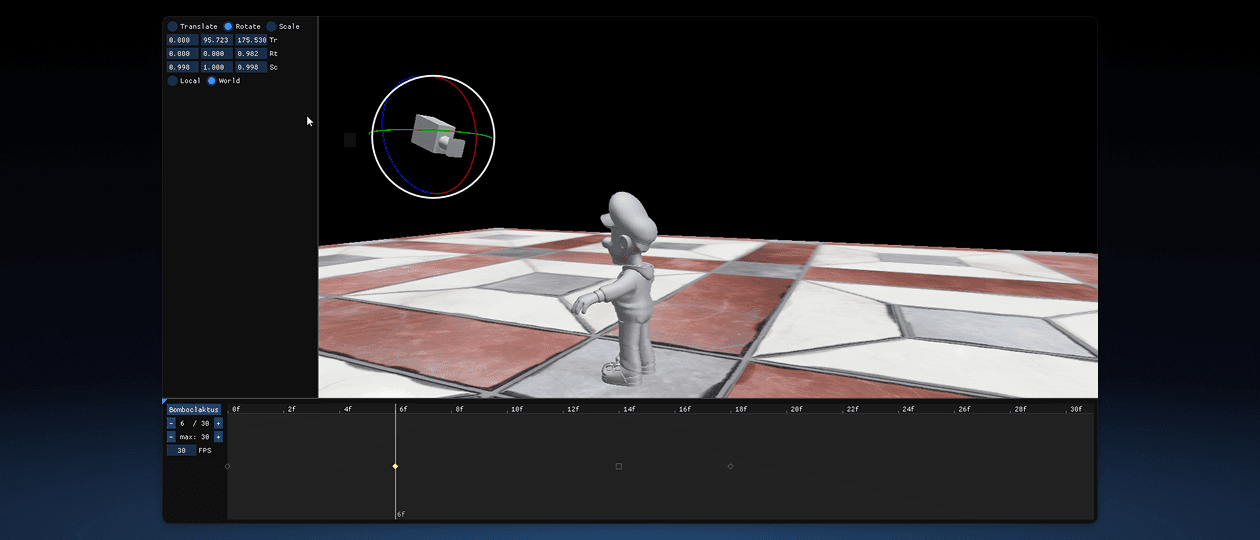
- Visual editor via ImGui
- Custom draw commands for timeline and keyframes
- Transform manipulation gizmo
- Custom file format for storing timeline data
- Undo/Redo system
Introduction
This is a simple tool we built for an assignment where we could make any tool we wanted. I collaborated with Philip Eriksson to build a timeline tool because we both had similar ideas for what we wanted to build. Making it together meant that we could finish it faster and better than if we had done it alone.
Our goal was to make something we could use in our game projects. We mainly planned to use it for moving our camera for scripted events, but it works for any object with a transform component. Having a visual tool makes the process easier for every discipline, since having to write code or ask animators to create animations for simple camera movements can be very limiting and time consuming.
We took inspiration from Maya and Blender, borrowing common keybinds to keep it familiar, and tested it with animators, level designers, and technical artists.
Interface
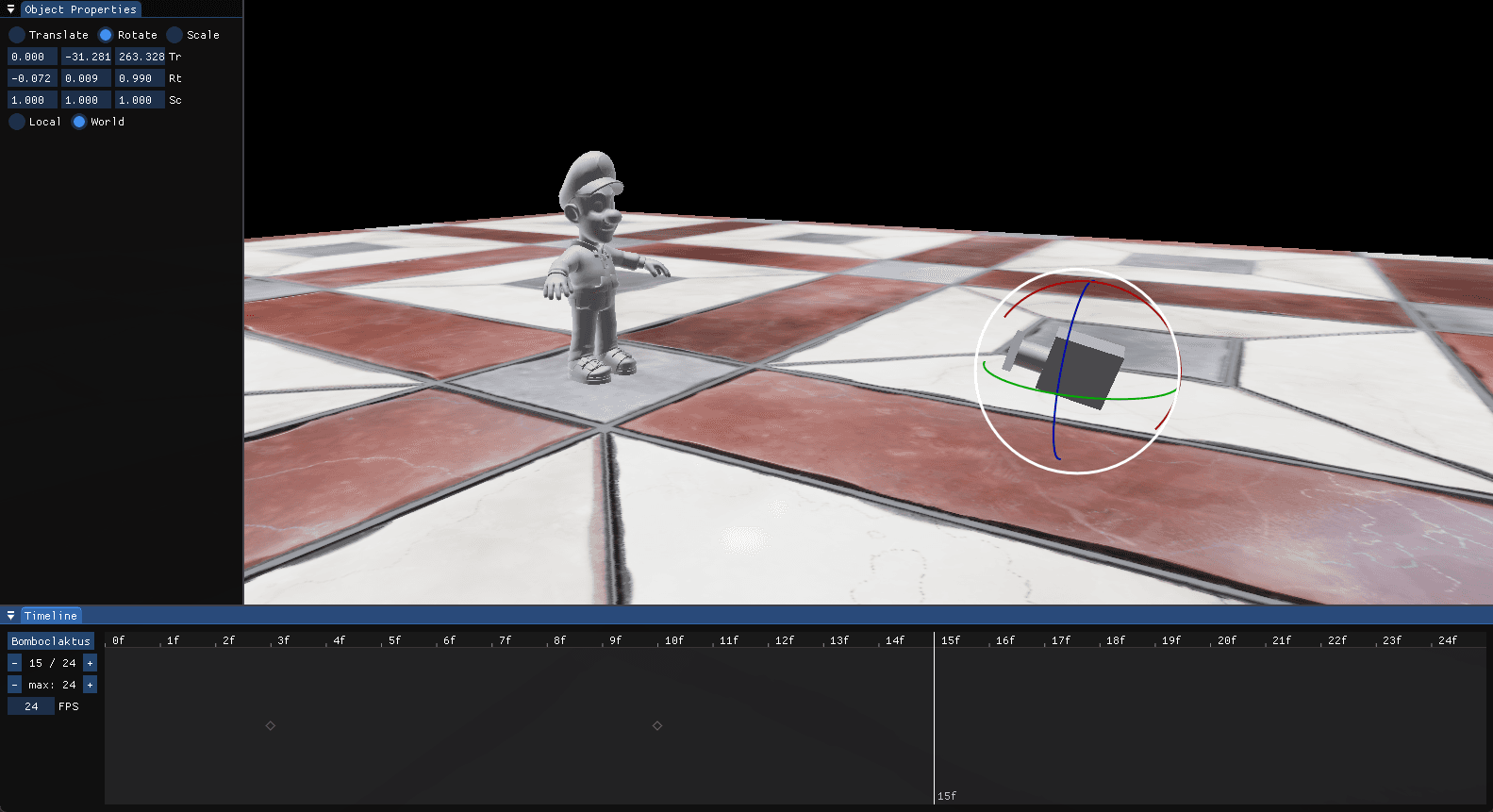
Making the interface easy to use was one of our main priorities. We used custom draw lists in ImGui to create a visual timeline and loosely based the design off of Rive’s timeline, since I really like it.
Of course, we also communicated with animators to make sure both the design and keybinds made sense.
Nobody wants to spend time modifying numbers in a table, so we implemented ImGuizmo, a little extension for ImGui for manipulating transforms directly in the viewport. We also implemented standard keybinds for switching between the different transform modes.
Timeline System
The timeline system itself is built to have no dependencies, apart from our CommonUtilities library.
We created a Timeline struct that holds keyframes, and a TimelineComponent that can be added to any Actor.
This way, we can use the timeline for any object in our engine, and it doesn’t need to know about anything except itself.
Playback
We started off by just holding keyframes, where the value would just snap to the next keyframe when we reached it. This was very easy to implement, but after verifying that the timeline system was working, we added linear interpolation between keyframes for smoother movement.
Once we implemented interpolation, we noticed that something was off with rotations. The scale changed when rotating, which was definitely not what we wanted. Turns out that lerping an entire transform matrix doesn’t work, since rotation and scale are baked together and the interpolation smears them into each other.
We redesigned our keyframes to hold translation, rotation, and scale separately, and implemented interpolation for each of them. We also used slerps (spherical linear interpolation) for the rotation, since it gives better results than lerping the quaternion values.
File Format
After a while, our tool was complex enough that we needed a way to save the timeline data for quicker iteration. This was inevitable, because we’d need it eventually for loading timelines in our games as well.
We initially discussed using JSON, but we wanted to try creating our own binary format. It’d be more efficient, and all data in our timeline is either floats or integers anyway. The data could just be dumped into a file without needing to worry about parsing or formatting it.
c++
enum class KeyframeType
{
	Hold,
	Linear
};

struct Keyframe
{
	KeyframeType Type = KeyframeType::Linear;

	CommonUtilities::Vector3<float> Translation = { 0.0f, 0.0f, 0.0f };
	CommonUtilities::Vector3<float> Scale = { 1.0f, 1.0f, 1.0f };
	CommonUtilities::Quaternion<float> Rotation = { 0.0f, 0.0f, 0.0f, 0.0f };
};

struct Timeline
{
	std::unordered_map<unsigned, Keyframe> Keyframes;

	unsigned FrameCount;
	int FramesPerSecond;

	bool IsLooping;
};
Undo/Redo
It’s amazing how much muscle memory affects our workflow. During testing, our hands kept reaching for Ctrl+Z on their own, so we decided to implement an undo/redo system sooner rather than later.
Whenever a change is made, the state of the relevant keyframe is inserted in a history buffer, along with the frame index and the type of action (add, modify, delete). We have an index that we move back and forth in the history buffer when undoing and redoing actions.
myKeyframeHistory.push_back({
	.KeyframeData = myKeyframeBuffer,
	.FrameIndex = myTimelineComponent->GetCurrentFrame(),
	.TimelineAction = aKeyframeActionType
});
We got it to work pretty fast, but there were many cases where things weren’t properly applied or reverted. Like when undoing a newly created keyframe, it would be removed (like expected), but redoing it would create the keyframe at the wrong frame index. I think if we were to remake this tool, we would probably use a command pattern instead, since it would be easier to maintain thanks to everything being turned into commands instead of state snapshots.
Conclusion
The tool turned out pretty well, but there are many features we wanted to add but didn’t have time for. Things like multiple tracks, easing curves, and a track visualisation of the transform in the viewport had to be cut, but we may add them in the future for making more complex sequences in our game projects.